Geometric Objects: Deleting
To delete geometric objects:
Select the objects you want to delete.
In the Edit menu or context menu, click Delete Selection.
If the selection contains the vertex (or vertices) adjacent to exactly two remaining edges that could be merged together, QuickField, having deleted the separating vertex, automatically performs the merge.
Otherwise, when one of vertices being deleted is adjacent to one or several of remaining edges, QuickField adds the adjacent edges to the list of objects being deleted and requests the user to confirm the action.
This feature is frequently used for "clipping" of the obsolete parts of model edges.
Example:
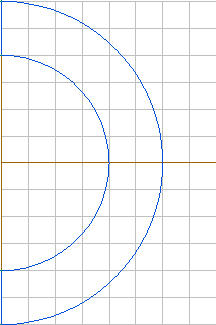
Consider the model shown in Pic.1 below with the semicircles having the radiuses of 2 and 3 and the common center at (0, 0). Suppose that you need to create several horizontal edges inside the block with the distance between consecutive edges equal to 0.5.
The fastest way to create them would be the following:
Set focus to the model window clicking inside it.
Choose Grid Settings from View menu and set Spacing to 0.5.
Press INS to enter the Insert Mode.
Drag mouse from (0,3) to (4,3) to create the new edge connecting these points.
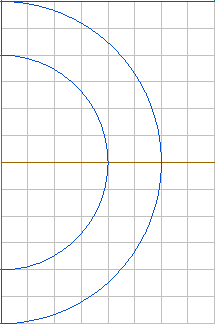
Press INS to leave the Insert Mode. You will get the model shown in Pic.2.
 |
 |
Pic.1 |
Pic.2 |
Select the new edge dragging the left mouse button from (-0.25,3.25) to (4.25,2.75).
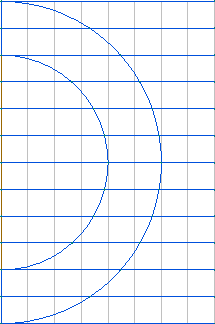
Choose Duplicate Selection from Edit menu, set displacement ordinate to -0.5, set Copies to 12, and click OK. You will get the model shown in Pic.3.
Select the right ends of horizontal edges dragging the left mouse button from (3.75,3.25) to (4.25,3.25).
Choose Delete Selection from the Edit menu and click Yes to confirm deletion.
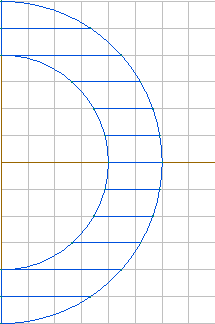
Select the left ends of the edges dragging the left mouse button from (0.25,1.75) to (0.25,1.75) and delete them similarly. You will get the required model (see Pic.4).
 |
 |
Pic.3 |
Pic.4 |
Shortcut: DEL