Model cutting with a plane, 2D field view
Cut plane presentation cuts the model through by the arbitrary positioned plane. After the cut is performed,
the color surfaces will be shown from one side of the plane and within the plane. Cut plane does not affect on other
presentations (scatter plot, vector plot, isosurface plot etc.). The command Cut by plane from the View menu or the
button  from the field view toolbar turn the cut plane presentation on and off.
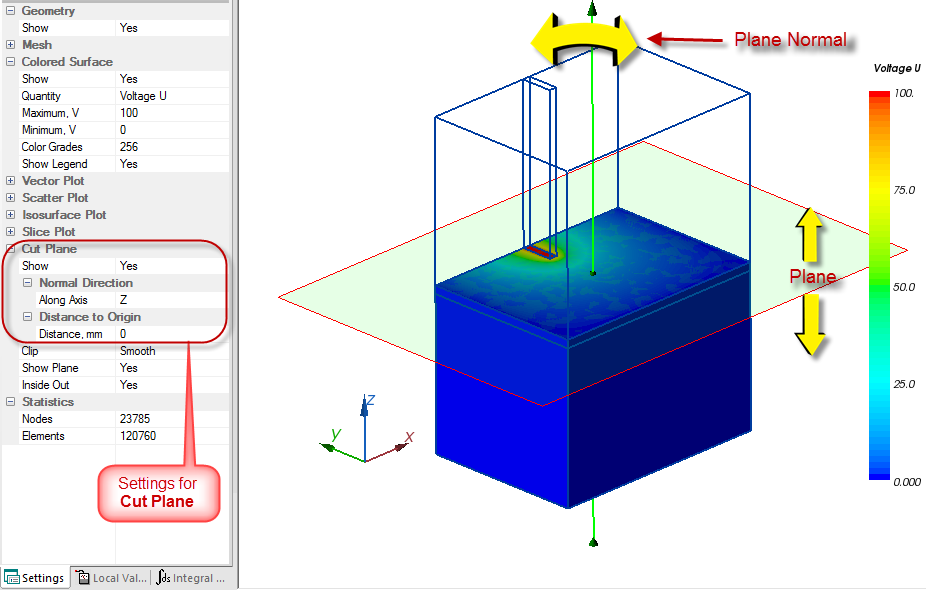
Pic. "Cut plane" presentation
Cut plane presentation has following specific features comparing to other presentations:
- When the presentation is turned on, interactive elements emerge on screen. Semi-transparent plane with the vector normal to it may be dragged to any direction by the mouse with left button pressed. The plane may be parallel dragged along the normal vector, and this vector may be tilted or turned around the point of intersection with the plane.
- "Cut plane" presentation should be combined with other presentations – color surface and finite element mesh – for producing informative picture on the screen.
Cut plane settings include:
- Normal direction is possible to select from the list whether is it along one of coordinate axes X, Y or Z, or specify arbitrary orientation by entering three coordinates nx, ny, nz of the normal vector.
- Distance to Origin specifies the distance from the plane to the coordinate origin, if the normal vector is parallel to one of coordinate axes, or thee of coordinates px, py, pz set the position of the arbitrary point in the plane. Plane position is fully defined by the direction of the normal vector and coordinates of any point which belongs to this plane.
- Clip setting controls the section which is created by the cut plane. Its value could be No clip, Smooth or Rough:
- Show plane settings with values Yes/No turn the visibility of the plane and its normal vector on and off. As a default the show plane is turned on. After the desired plane position is achieved, it is convenient to turn the show plane off, to return to usual mouse gestures control over the presentation view.
- Inside out setting with values Yes/No selects from what side from the cut plane the section should be shown
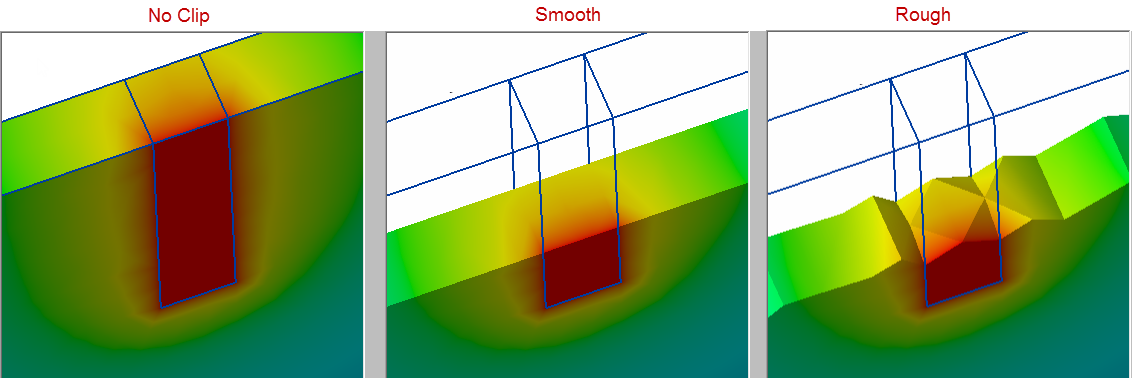
Pic. Clip setting effect
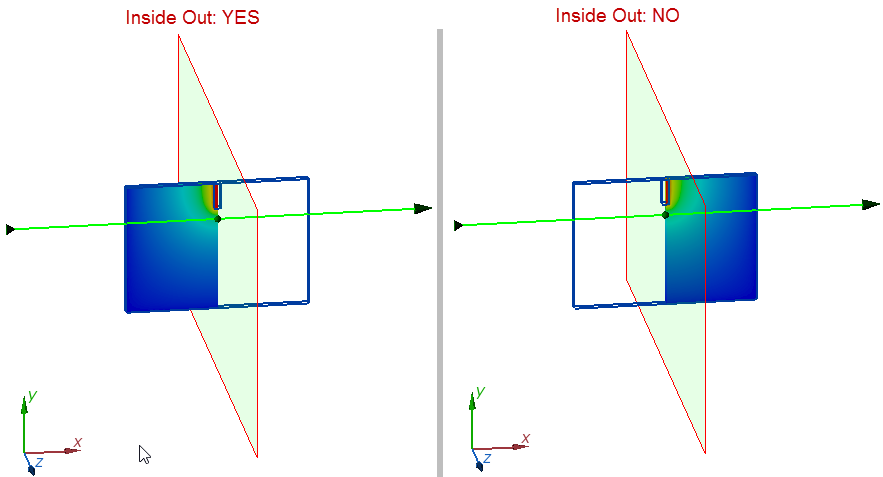
Pic. InsideOut setting effect