Working with field pictures
When you start analyzing the solution QuickField opens a new window showing the calculated field picture in the most appropriate mode for the problem type. If necessary, you can change the viewing mode or combine several viewing modes together using the View / Field Picture Properties command.
Although you can invoke all the solution analysis actions via menu, the toolbar associated with the field picture window provides easier and more convenient interface to most of them.
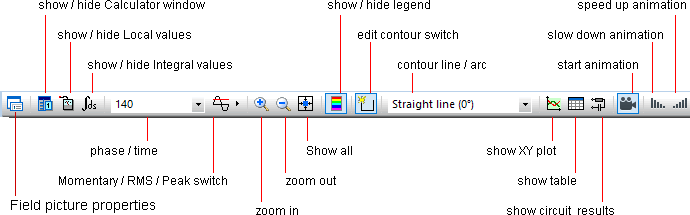
The following field picture analysis features are specific to time-dependent problems:
- For transient problems, QuickField calculates the results for the specified time interval with the field picture window displaying the snapshot related to a single time moment. By default, it is the last moment of the interval. You can change the displayed moment specifying another value in the "Time/Phase" toolbar window. Such change would also affect the field calculator window and other windows (tables and plots) related to the field picture.
- For time-harmonic problems, you can choose the presentation mode specifying
which kind of values the window displays:
- RMS values, or
- Peak (amplitude) values, or
- Momentary values for the given phase.
To choose the mode, open the Field Picture dialog (View / Field Picture Properties) or check the corresponding item in the toolbar drop-down menu to the right of the Time/Phase combobox:

Both in the dialog and on the toolbar you can additionally specify the desired phase value in degrees.