Window Management Tips
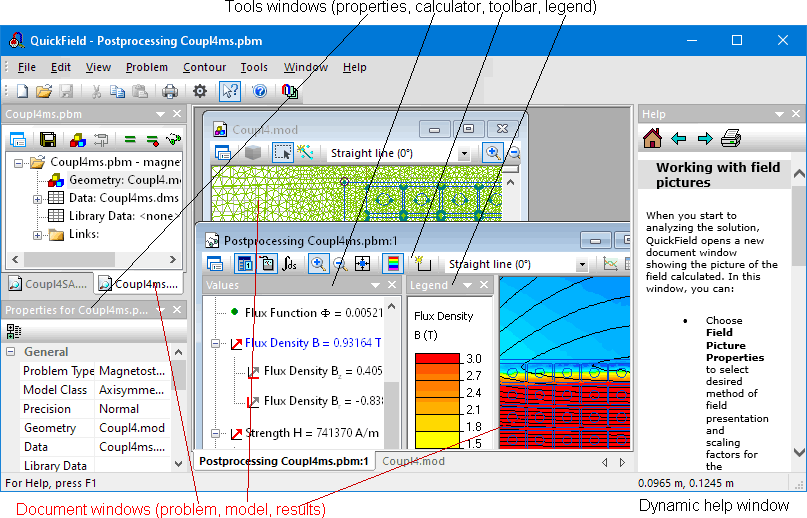
QuickField is a multi-document application, so you can work with several documents - geometry, materials, results, etc. - at once. We will discuss dealing with specific documents later; here are the common principles for creating and opening documents, switching between the editors, and arranging the windows.
There are three basic window types in QuickField:
- The Problem window presents the structure of the problem and its components.
- The Document window shows graphics and tables related to the model geometry, the field picture, the circuit, etc.
- The Tools window displays additional information and provides the control functions.
Windows of each type can be arranged on the screen differently.
Problem Window
The problem window is usually docked on the left side of the main QuickField window. If several problems are opened at once, the windows can be docked side by side, or in a column, or they can be tabbed in a single pane leaving maximum space for graphics. This window can also be left floating on top of the other windows.
To move the problem window, simply drag it by the window title to new position. While dragging, possible docking positions are shown by the diamond shaped arrows. When you move the pointer over the diamonds, QuickField shows the corresponding rectangle where the window can be docked if you release the mouse button.
Document Window
QuickField document windows, such as the model editor, the field plot, or the electric circuit window, occupy the main are of the QuickField workspace; they cannot be docked. For fast switching between these windows, there is a tab bar near the bottom edge of the main window, similar to the Windows task bar.
A document window can be minimized to an icon, or maximized, or arranged with its regular size and position, which you can change by dragging any corner or edge of the window. This is useful to display several document windows at once. QuickField can also tile all document windows automatically, when you choose Tile Vertically or Tile Horizontally in the Window menu.
Some document windows can be split into two or four panes. To split the window, drag the small gray rectangle on top of the vertical scrollbar or on the left of the horizontal scrollbar. You can also choose Split in the Window menu. To switch between panes, click it with the mouse or use F6.
To restore the single-pane view, double-click the splitter or drag it to the window border until it disappears.
Tool Window
The tool windows - the field calculator, color legend, circuit elements list, etc. - are usually docked within the corresponding document window. Like the problem window, you can drag and dock tools within their parent's boundaries. When floating, tools can be dragged anywhere on the screen, even to another monitor.
Properties Window
The Properties window can be opened using the Properties command in the View menu. This window is docked to the problem window (as shown in the picture) by default or can be switched to floating. The Properties window displays different editing fields relevant to the current object (the problem, geometry model, etc.) Some properties are for information only (shown in grey), the others can be changed by typing in the new value or selecting from the dropdown list. The changed property value comes into effect immediately.