Electrostatics Problem--Step-by-Step Description: Step 5
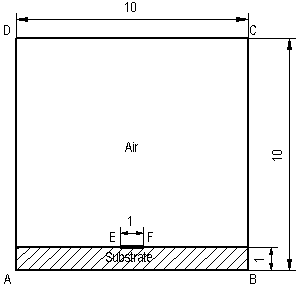
We are done with the model's geometry. Now we can assign labels to geometrical objects to describe material properties, sources and boundary conditions.
The model contains two blocks having different material properties: the air and the substrate. To be clear, we can use the word Air to label the upper block and Substrate for the lower one. To assign these labels to blocks:
-
Double-click the upper block. It becomes selected and the Selection Properties dialog appears.
-
In Label box, type Air.
-
Click OK to close the dialog.
-
Repeat these actions to label the lower block as Substrate.
Edge labels are used to define specific boundary conditions on inner and outer boundaries of the region. In our case, we need to specify boundary conditions for the shield (rectangle ABCD) and for the strip (line EF). To assign labels to edges:
-
Double-click the EF edge and label it as Strip.
-
Pick consecutively six edges, which constitute the rectangle ABCD, holding down the CTRL key. Those edges become highlighted that indicates the selection. If you have selected excess edge, vertex or block, pick it once more to unselect it. Do not forget to unselect the EF edge.
-
Click right mouse button within selection to bring up the context menu without changing the selection.
-
On the context menu, click Properties and assign the Shield label to selected edges.
-
Click OK to close the dialog.
We also need to assign vertex label to any vertex contacting the strip, to specify that the strip is charged. No matter which vertex you choose, the charge will be distributed through the entire conductor. To assign the label to a vertex:
-
Double-click a vertex, E or F, a dialog box appears.
-
In Label box, type Charge.
-
Click OK to close the dialog.
Now we have finished with assigning labels to geometrical objects.